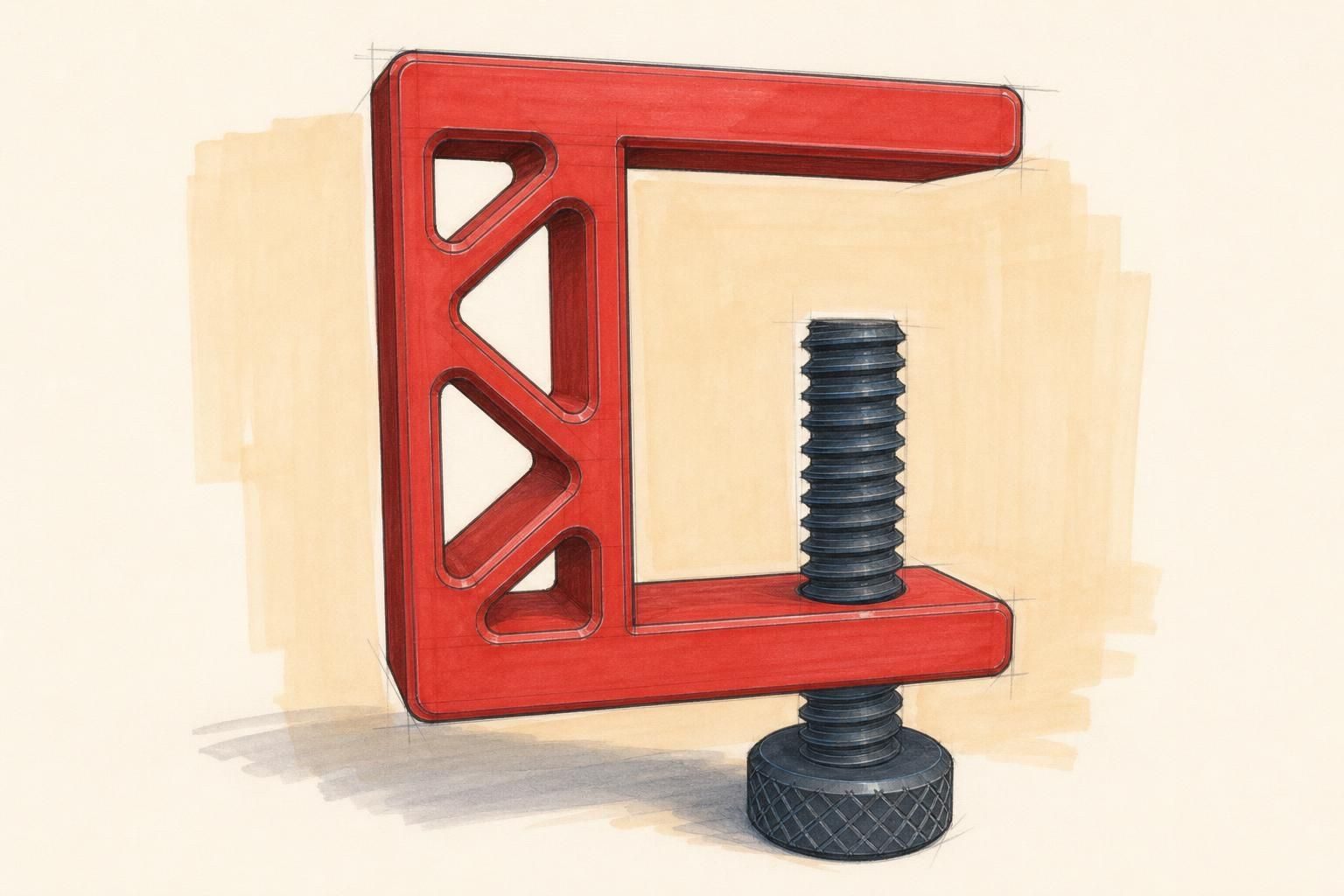
Some things are easy to say and hard to write down. "That corner." "This edge, not that one." "A slot about here, running that way."
You can point instead. Two of the three ways to talk to a forge are on the part itself: clicking a spot, and drawing over the whole thing.
Click the spot you mean
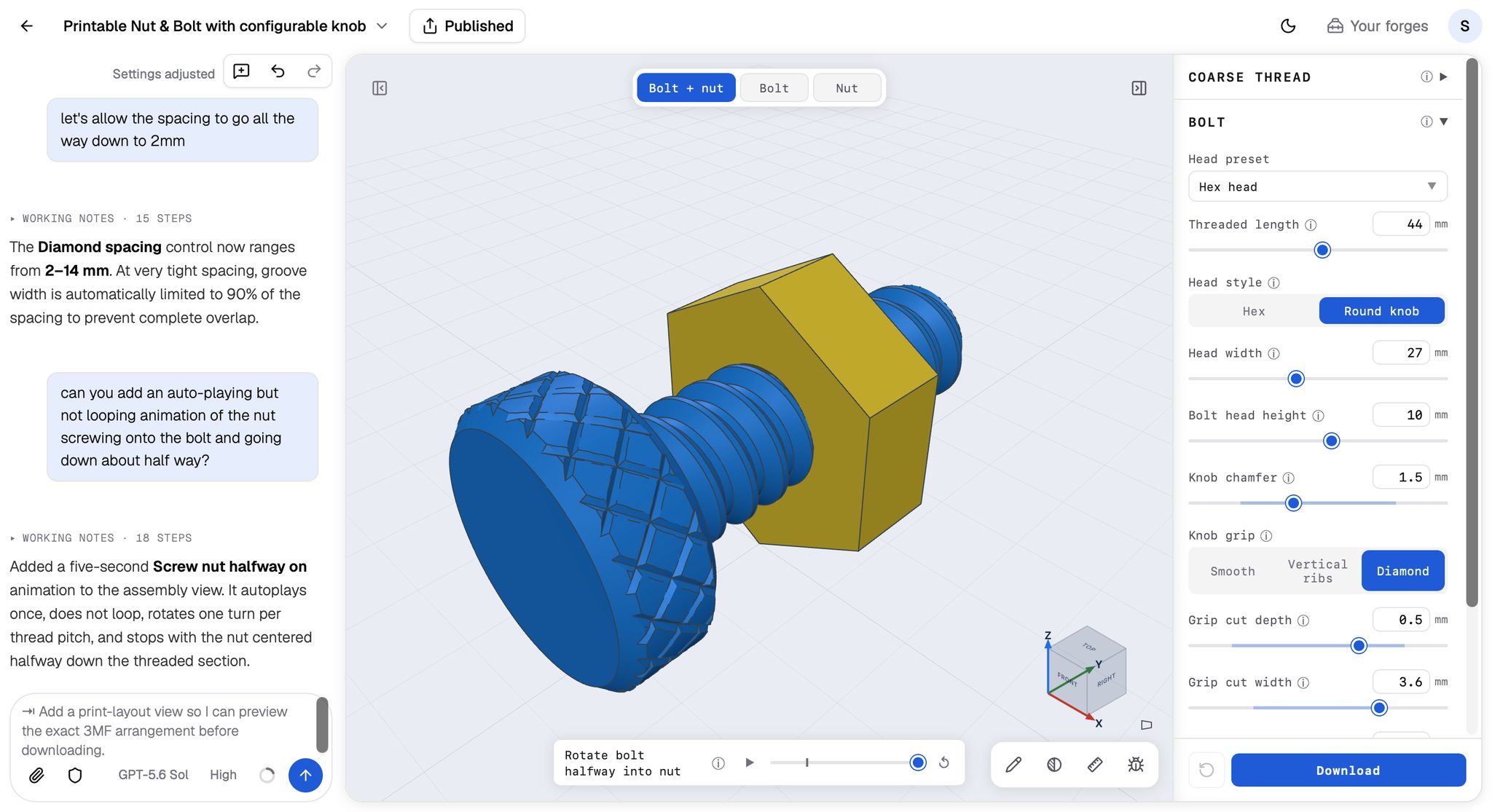
Click anywhere on the model. A marker drops where you clicked, a small box opens next to it, and what you type there travels attached to that point.
What the assistant receives is more than a dot. It gets the place you clicked, which surface it is on, and — when the part names its features — the name of the feature you hit, so "this" stops being ambiguous.
So instead of describing the location, click it and describe the change:
- "Round this edge, about 2mm."
- "This wall is too thin."
- "Put a countersink here."
- "This face should be flat, not curved."
Two clicks beat a paragraph
You can click several spots before you send anything. Each one adds a marker, and they all go with the message.
That turns relationships into one short sentence. Click two holes: "these two need to be 40mm apart, centre to centre." Click a boss and a hole: "this should drop into this." Click both ends of a rib: "this needs to run the full length."
If you change your mind, you can drop a marker without sending. Closing the box keeps the points as chips on the chat box, so they are still attached to your next message.
When words run out, draw
To the lower right of the model there is a small row of buttons. The pencil — Sketch — turns the viewer into something you can draw on.
While sketch mode is on, the view holds still and your pointer draws instead of orbiting. So frame the part the way you want it first: turn it so the thing you want to talk about is facing you, then start drawing. The drawing is thrown away when you leave sketch mode, so there is no cost to trying one, deciding it is wrong, and drawing it again.
The toolbar gives you:
- Pen — drag to draw freehand. Arrows, squiggles, circling things.
- Line — drag from one end to the other. It snaps to horizontal, vertical and 45°; hold Shift to make it snap when it is not sure.
- Rectangle and Ellipse — drag corner to corner. They snap to a perfect square and a perfect circle when you are close; Shift makes them snap when they are not sure.
- Move — drag a shape you have already drawn to reposition it, grab a handle to resize it, or grab just outside it to rotate.
- Eraser — scrub over a line to take part of it out.
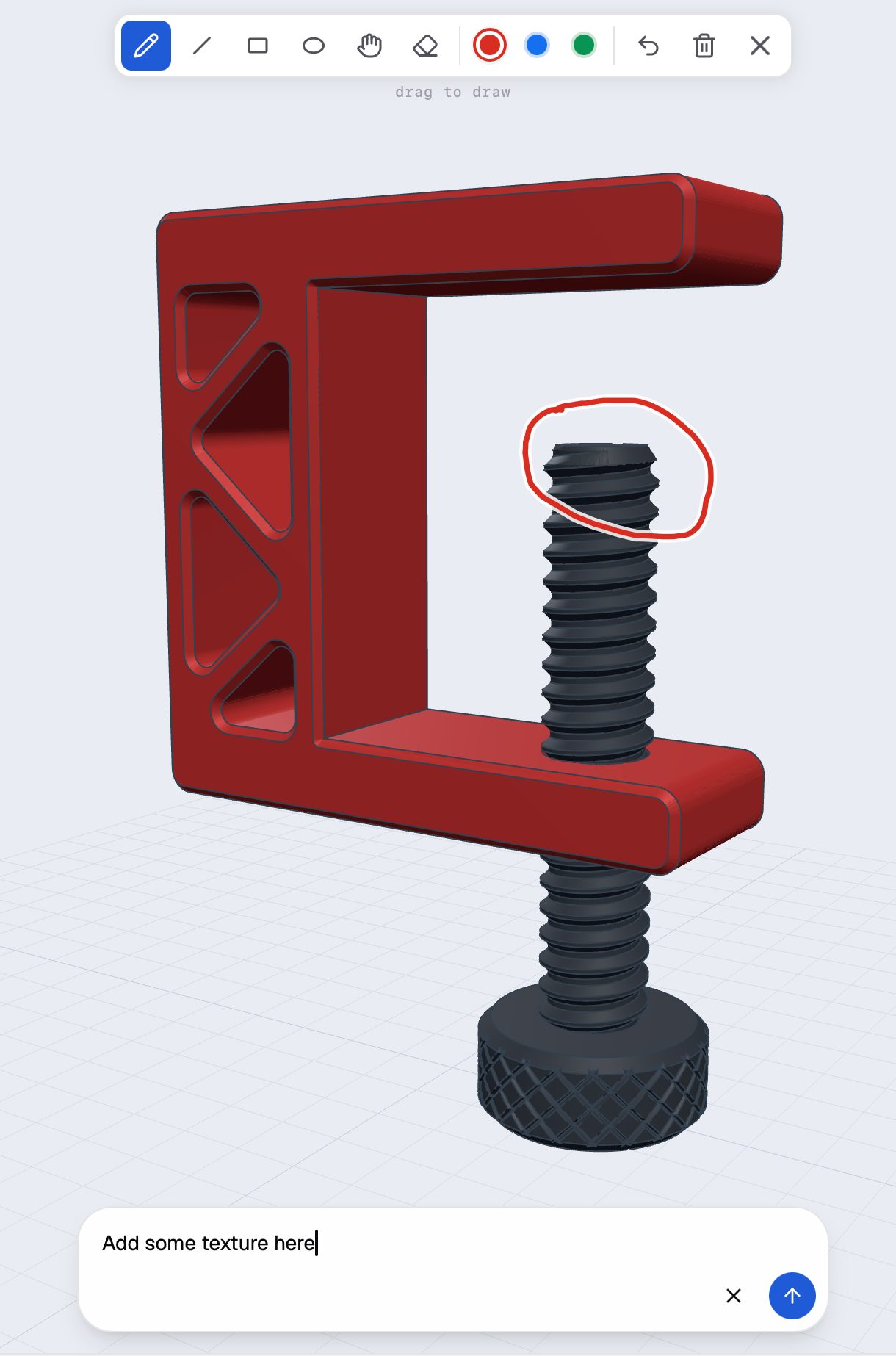
There are three ink colours, an undo, and a clear. Underneath, a box asks what the sketch is about. Type the sentence, press Send, and the drawing and the words arrive together.
Five sketches worth stealing
None of these takes more than a few seconds.
Circle a feature. An ellipse or a scribbled ring around one hole, one boss, one corner, and then say what should happen to it. This is the most useful sketch there is, and it is just a circle.
Draw the cut line. Straight line across the part: "split it here so it prints flat." A line is a much better way to say where than "about two thirds of the way up".
Box out a new feature. Draw a rectangle where a slot should go and say "cut a slot this shape for a 25mm strap." The rectangle tells it where and roughly how big; your sentence tells it the number that has to be exact.
Cross it out. An X over a feature reads exactly the way you would expect: "remove this."
Draw the outline you actually want. Sketch the profile over the top of the current shape — a taller lip, a rounder corner, a longer arm — and say "more like this." You are not producing a drawing anyone has to work from. You are showing the difference.
It really does not have to be neat
A wobbly circle in roughly the right place tells the assistant more than a careful paragraph does, and it takes two seconds. The tools snap and the eraser is right there, but neither is the point — the point is that a rough mark in the right place is unambiguous in a way that words are not.
Two small things that help:
Draw on the part, not beside it. Where your ink crosses the model, the assistant can work out what it is touching. Ink floating in empty space is just a shape on a picture.
If you use more than one colour, say what they mean. "Red is what comes off, green is what gets added" costs you six words and removes all the guessing.
The sketch is half the message
The box under the toolbar is not an afterthought. A drawing shows where; your sentence says what and how much.
A circle on its own means "something about this". A circle plus "open this up to 8mm" is an instruction that can only be read one way — and that is the whole trick, in both halves of this lesson.